
Core Web Vitals: the complete guide to LCP, INP, CLS and supporting metrics
A technical, SEO-driven guide to Core Web Vitals: LCP, INP, CLS, supporting metrics like TTFB and FCP, tools, Google's official thresholds and workflow.
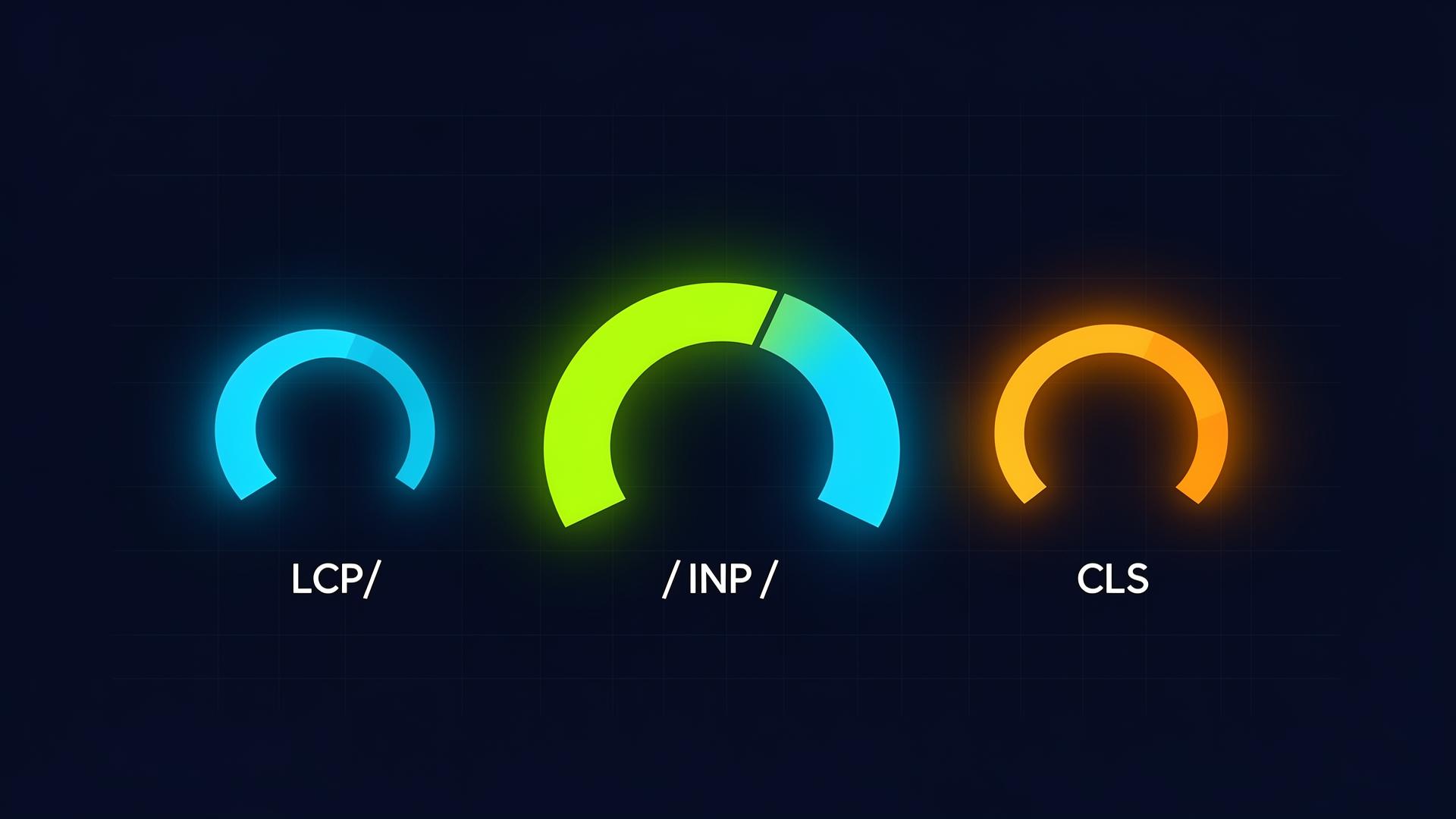
Table of Contents
- Introduction to Core Web Vitals
- Why Core Web Vitals Matter
- Understanding Field vs. Lab Data
- Largest Contentful Paint (LCP)
- Interaction to Next Paint (INP)
- Cumulative Layout Shift (CLS)
- Supporting Web Vitals Metrics
- Essential Tools for Core Web Vitals Analysis
- A Structured Core Web Vitals Optimization Workflow
- Common Core Web Vitals Mistakes and Myths
- 1604lab Case Study: Hyvä Magento 2 Performance
- Frequently Asked Questions About Core Web Vitals
- Official Core Web Vitals Sources
- Ready to Transform Your Website Performance?
Introduction to Core Web Vitals
Google Core Web Vitals (CWV) are a set of standardized, user-centric metrics that quantify key aspects of the user experience on the web. Introduced by Google as part of their broader initiative to improve the quality of websites, these metrics measure real-world user experience for loading performance, interactivity, and visual stability of a page. They are not merely technical benchmarks; they represent critical aspects of how users perceive the performance of a website.
Google’s motivation for introducing Core Web Vitals is deeply rooted in its mission to organize the world's information and make it universally accessible and useful. A crucial part of this utility is a positive user experience. Slower, jankier, or visually unstable websites frustrate users, leading to higher bounce rates and reduced engagement. By integrating Core Web Vitals into its ranking algorithms, Google signaled a significant shift: technical SEO now explicitly includes real-world user experience metrics.
The initial major update integrating CWV into ranking signals was the Page Experience update, which officially rolled out in 2021. This update emphasized that user experience, encompassing mobile-friendliness, safe-browsing, HTTPS, and intrusive interstitial guidelines, would become a ranking factor. Core Web Vitals were the measurable components of this update, applying to both mobile and desktop search results globally.
Since their inception, Core Web Vitals have evolved. While the core philosophy remains, the specific metrics can change or be refined to better reflect user experience accurately. A prime example of this evolution is the replacement of First Input Delay (FID) with Interaction to Next Paint (INP) as a Core Web Vital. This pivotal change officially took effect in March 2024. FID primarily measured the delay before the browser could begin processing the first user interaction. INP, on the other hand, provides a more comprehensive measure of responsiveness by observing the latency of all interactions that occur during a page's lifespan, and reporting a single, representative value. This change reflects Google's continuous effort to align its metrics more closely with the typical user journey and modern web development practices.
For any website owner, developer, or SEO professional, understanding and optimizing for Core Web Vitals is no longer optional. It is a fundamental requirement for maintaining search visibility, ensuring a positive user experience, and ultimately, achieving business objectives in the competitive digital landscape.
Why Core Web Vitals Matter
The relevance of Core Web Vitals extends far beyond mere technical compliance. They are integral to successful online presence, influencing everything from search engine ranking to direct business outcomes. Understanding why they matter requires looking at their impact on mobile-first SEO, user experience, and ultimately, conversion rates.
Mobile-First SEO and Ranking Impact
Google's emphasis on mobile-first indexing and ranking means that the mobile version of a website is the primary one considered for ranking. Since a significant portion of web traffic now originates from mobile devices, optimizing for Core Web Vitals on these platforms is paramount. Mobile performance is often more challenging due to varying network conditions, less powerful hardware, and diverse screen sizes. A site that performs poorly on mobile will struggle to rank, regardless of the quality of its content.
The Page Experience update, which brought Core Web Vitals into the ranking algorithm, solidified this connection. While content relevance remains a primary ranking factor, a poor page experience can hinder even high-quality content from achieving its full ranking potential. Google has stated that while great content can still rank well even with suboptimal Core Web Vitals, excellent Core Web Vitals can serve as a tie-breaker between pages of roughly equal content quality.
For example, imagine two competing e-commerce sites selling identical products at similar prices. If one site consistently loads faster, responds quicker to user input, and maintains visual stability compared to the other, Google is likely to favor the former in search results, giving it a tangible advantage.
Enhancing User Experience (UX)
At their core, Core Web Vitals are about user experience. Each metric directly reflects a common frustration users encounter:
- Largest Contentful Paint (LCP) addresses the user's perception of load speed. A slow LCP means users are staring at a blank or incomplete screen for longer, leading to impatience and potential abandonment.
- Interaction to Next Paint (INP) measures responsiveness. A high INP indicates a lag between a user action (click, tap, keyboard input) and the visible response, creating a feeling of a sluggish or broken interface.
- Cumulative Layout Shift (CLS) tackles visual stability. Unexpected shifts of content can lead to misclicks, disorientation, and irritation, particularly on mobile devices where screen real estate is limited.
When these core aspects of UX are neglected, users quickly become frustrated. They are less likely to navigate deeply into a site, convert, or return in the future. A positive and frictionless experience fosters trust and encourages engagement, which are invaluable for any website.
Direct Impact on Conversion Rates and Business Metrics
The relationship between website performance and business outcomes is well-documented. Numerous studies and real-world case studies demonstrate a direct correlation between improved Core Web Vitals and better conversion rates, lower bounce rates, and increased user engagement.
- Akamai's Research: A widely cited study by Akamai found that a 100-millisecond delay in website load time can hurt conversion rates by 7%. This seemingly small delay can translate into significant revenue loss for businesses.
- Deloitte's "Milliseconds Make Millions": This report highlighted how even small performance improvements can lead to substantial gains for large online retailers. For example, a 0.1-second improvement in load time could increase conversion rates by 8% for retail sites and 10% for travel sites in their analysis.
- Google Case Studies: Google itself has published numerous case studies demonstrating the positive impact of CWV improvements. For instance:
- Pinterest: Reduced perceived wait times by 40% and saw a 15% increase in sign-ups, helping them to re-engage users.
- Vodafone: Optimized their pages to significantly improve LCP and FCP, resulting in an 8% increase in sales and a 15% increase in lead-to-visit rate.
- The Economic Times: Improved Core Web Vitals scores led to a 43% increase in bounce rate reduction and a 70% increase in average session duration.
Beyond these specific examples, the general principle holds true: a faster, more responsive, and visually stable website performs better across all key business metrics. Users tend to spend more time on it, view more pages, complete more desired actions (purchases, form submissions, sign-ups), and return more often. Conversely, a poor-performing site drives users away, resulting in lost opportunities and revenue.
Therefore, optimizing for Core Web Vitals is not just about appeasing Google's algorithm; it's about investing directly in the user experience, which directly translates into improved business performance and competitive advantage.
Understanding Field vs. Lab Data
When analyzing Core Web Vitals, it's crucial to distinguish between two primary methodologies for data collection: field data and lab data. Both provide valuable insights but measure performance under different conditions and for different purposes.
Field Data (Real User Monitoring - RUM)
Field data, also known as Real User Monitoring (RUM) data, collects information from actual users visiting your website. This is the most authentic representation of how your site performs for real people, on real devices, across various network conditions, and in different geographical locations. Google's primary source for field data is the Chrome User Experience Report (CrUX).
- Chrome User Experience Report (CrUX): CrUX is a public dataset of key user experience metrics for millions of websites. It collects anonymized, aggregated data from actual Chrome users who have opted in to sync their browsing history and have not set up a Sync passphrase. This data includes LCP, INP, CLS, TTFB, and FCP for both desktop and mobile. CrUX data is what Google uses to evaluate Core Web Vitals for its search rankings. It is updated monthly and provides a global overview of a site's performance. The data is typically available at an origin level (the entire domain) but can also be available at a page level if there's sufficient traffic.
- 75th Percentile: A critical aspect of CrUX data, and Core Web Vitals in general, is the use of the 75th percentile. Google doesn't measure performance based on the average user experience. Instead, a site is considered to have "good" Core Web Vitals if 75% of users (across all visits) experience good performance for that metric. This is important because it means you can't just optimize for the fastest segment of your users; you must ensure a good experience for a large majority, including those on less powerful devices or slower connections. This approach prevents sites from scoring well by only catering to ideal conditions while ignoring a significant portion of their audience.
- RUM Providers: Beyond CrUX, many third-party RUM providers (e.g., Akamai, Dynatrace, New Relic, SpeedCurve) offer more granular, real-time field data. These services typically integrate a JavaScript library into your website, which then collects performance metrics directly from your users' browsers. This allows for deeper segmentation (by country, device, browser, A/B test groups) and faster feedback loops than CrUX.
Lab Data (Synthetic Monitoring)
Lab data, or synthetic monitoring, is collected in a controlled environment using predefined settings and simulated conditions. Tools like Lighthouse and PageSpeed Insights generate lab data by simulating a page load from a specific location, device, and network speed. This data is repeatable and useful for debugging, establishing performance budgets, and testing changes before deployment.
- Lighthouse: An open-source, automated tool for improving the quality of web pages. It runs a series of audits for performance, accessibility, SEO, and more. When you run Lighthouse (e.g., in Chrome DevTools), it simulates a page load on a throttled mobile network and device. It provides scores for LCP, FCP, Speed Index, TBT, and CLS, among others. Notably, Lighthouse cannot directly measure INP or FID in a truly representative way because it doesn't simulate actual user interactions.
- PageSpeed Insights (PSI): A Google tool that combines both field data (from CrUX, if available for the URL) and lab data (from Lighthouse) for a given URL. PSI is an excellent starting point for understanding your page’s Core Web Vitals performance. It presents the CrUX data first as "Discover what your real users are experiencing" and then provides the Lighthouse audit results as "Diagnose performance issues."
- web-vitals JavaScript Library: This lightweight JavaScript library from Google allows you to collect Core Web Vitals and other key performance metrics directly in the browser. While it collects data client-side, making it resemble RUM, it's considered lab data if you're using it in a controlled testing environment (e.g., during development or CI/CD). However, when deployed on a live site, it functions as a lightweight RUM solution, sending actual user metrics to an analytics endpoint. It's particularly useful for gathering INP data, which Lighthouse doesn't provide directly.
Key Differences and Relationship
The fundamental difference is that field data shows you what your users are actually experiencing, while lab data helps you diagnose and fix issues proactively.
- Accuracy vs. Reproducibility: Field data is highly accurate in representing real-world experiences but can be variable. Lab data is highly reproducible but based on simulated conditions that might not perfectly mirror all user environments.
- Metrics: Some metrics like INP are best measured in the field, as they depend on actual user interactions. Lab tools can estimate potential issues (e.g., long tasks contributing to INP), but not the metric itself as a user experiences it.
- Purpose: Use field data to understand your overall performance and identify pages or user segments that are suffering. Use lab data to identify root causes, test specific optimizations, and prevent regressions during development.
For optimal Core Web Vitals strategy, it's essential to use both types of data in conjunction. Field data (CrUX, RUM) tells you if you have a problem and for whom. Lab data (Lighthouse, DevTools) helps you understand why and how to fix it.

Largest Contentful Paint (LCP)
Largest Contentful Paint (LCP) is a Core Web Vital metric that measures the perceived loading speed of a web page. It quantifies the time it takes for the largest content element visible within the viewport to become rendered and stable. This metric aims to approximate when a user perceives the main content of the page has loaded, making it a critical indicator of a good loading experience.
LCP Definition and Thresholds
LCP is defined as the render time of the largest image or text block visible within the viewport, from when the page first starts loading. It focuses on the elements most likely to be perceived as the main content by a user. Unlike other render metrics like First Contentful Paint (FCP), which just measures when any content appears, LCP hones in on the most substantial element, giving a better sense of when the page "feels" loaded to a human.
Google's thresholds for LCP performance are:
- Good: Less than or equal to 2.5 seconds
- Needs Improvement: Greater than 2.5 seconds and less than or equal to 4.0 seconds
- Poor: Greater than 4.0 seconds
To pass the Core Web Vitals assessment, at least 75% of page visits, across all devices, must achieve a "Good" LCP score.
Candidate Elements for LCP
The LCP element is typically one of the following types:
<img>elements (including those inside an<svg>element)<image>elements inside an<svg>element<video>elements with a poster image- Elements with a background image loaded via CSS
url()(typically a large hero image, not CSS gradients) - Block-level text elements containing text nodes or other inline-level text elements.
- Auto-playing
<video>elements (the frame shown at LCP is considered the largest contentful paint, typically the first frame).
The LCP element can change during the page load if a larger element finishes rendering later. The browser reports the largest element visible at various points during the load, and the final LCP is the largest of these.
Common Causes of Poor LCP
A high LCP score (meaning slow loading) can be attributed to several factors:
- Slow Server Response Times (TTFB): If your server takes a long time to respond to a request, everything else on the page is delayed. The Time To First Byte (TTFB) is often a direct contributor to LCP.
- Render-Blocking JavaScript and CSS: Before the browser can render content, it often needs to parse and execute all CSS and JavaScript files that are linked in the
<head>of the HTML. If these files are large or numerous, they can block rendering for a significant period. - Slow Resource Load Times: The LCP element itself (e.g., a large image) might be slow to load due to its size, unoptimized format, or inefficient delivery (e.g., not using a CDN).
- Client-Side Rendering: For Single Page Applications (SPAs) or sites heavily reliant on client-side JavaScript to render content, the initial HTML might be almost empty. The LCP element is only “discovered” and rendered much later in the page lifecycle, leading to poor LCP.
- Lazy-Loading the LCP Element: Accidentally lazy-loading the LCP image or other critical hero content means the browser explicitly holds back its loading until it's "needed," which defeats the purpose for the primary content.
- Inefficient Font Loading: Web fonts, especially large ones or those loaded with tactics that cause FOIT (Flash of Invisible Text) or FOUT (Flash of Unstyled Text), can delay text rendering, including LCP text elements.
Optimizations for LCP
Improving LCP involves a multi-faceted approach, targeting both server-side and client-side performance:
- Improve Server Response Time (Reduce TTFB):
- Optimize your server: Use faster hosting, optimize database queries, perform server-side caching.
- Use a Content Delivery Network (CDN): CDNs cache your static assets (images, CSS, JS) and serve them from edge servers geographically closer to your users, significantly reducing latency.
- Implement browser caching: Set appropriate
Cache-Controlheaders for resources. - Pre-render pages or use Server-Side Rendering (SSR) / Static Site Generation (SSG): For content-heavy sites, delivering fully rendered HTML helps the browser paint content much faster.
- Eliminate Render-Blocking Resources:
- Critical CSS: Extract the minimal CSS required for the initial viewport (`above-the-fold` content) and inline it directly into the HTML. Defer or asynchronously load the rest of the CSS.
- Defer non-critical JavaScript: Use the
deferorasyncattributes for JavaScript files that aren't critical for the initial render.deferensures execution after HTML parsing, whileasyncallows execution during parsing. - Minimize and compress CSS/JS: Remove unnecessary characters (whitespace, comments) from code and use Gzip/Brotli compression.
- Optimize Image Resources (especially for LCP images):
- Compress images: Use modern formats like WebP or AVIF, and compress images appropriately without sacrificing quality.
- Use responsive images: Employ
<img srcset>and<picture>elements to deliver appropriately sized images for different viewport sizes and resolutions. - Preload the LCP image: Add a
<link rel="preload">tag in the<head>to tell the browser to fetch the LCP image as a high-priority resource as early as possible. - Avoid lazy-loading the LCP image: Ensure the LCP image is *not* lazy-loaded. It should be loaded immediately.
- Use
fetchpriority="high": For the most critical images, this attribute can signal to the browser that the resource is of high priority, potentially accelerating its download.
- Optimize Web Fonts:
- Preload fonts: Similar to images,
<link rel="preload" as="font" crossorigin>can help fetch critical fonts earlier. - Minimize font usage: Use fewer font families and variants.
- Use
font-display: optionalorswap:optionalgives the browser discretion to use a fallback if the font isn't ready quickly, preventing FOIT.swapuses a fallback then swaps in the web font (can cause CLS, so test carefully). - Self-host fonts: Serving fonts from your own domain can remove third-party DNS lookups and connection overhead.
- Preload fonts: Similar to images,
- Establish Third-Party Connections Early:
- Use
<link rel="preconnect">to initiate early connections to critical third-party origins (e.g., for analytics, ads, video embeds, fonts). - Use
<link rel="dns-prefetch">for even earlier (but less impactful) DNS lookups.
- Use
LCP Code Examples
1. Preloading the LCP Image
If your LCP element is a hero image, explicitly tell the browser to fetch it early:
<head>
  <!-- Preload the LCP image if it's the main hero image -->
  <link rel="preload" as="image" href="/path/to/hero-image.webp">
  ...
</head>
<body>
  <img src="/path/to/hero-image.webp" alt="Description of hero" width="1200" height="600" fetchpriority="high">
  ...
</body>
Note the fetchpriority="high" on the <img> tag for maximum effect.
2. Responsive Images with srcset and sizes
Ensuring the browser loads an image suitable for the user's viewport:
<img
  src="/path/to/image_medium.jpg"
  srcset="/path/to/image_small.jpg 480w,
          /path/to/image_medium.jpg 800w,
          /path/to/image_large.jpg 1200w"
  sizes="(max-width: 600px) 480px,
         (max-width: 1000px) 800px,
         1200px"
  alt="Descriptive alt text"
  width="1200"
  height="800"
  loading="eager" <!-- Important: do not lazy-load the LCP image -->
>
3. Inline Critical CSS and Defer Non-Critical CSS
This speeds up rendering of above-the-fold content:
<head>
  <!-- Inline critical CSS -->
  <style>
    /* CSS required for immediate viewport rendering */
    .hero {
      background-color: #f0f0f0;
      padding: 20px;
    }
  </style>

  <!-- Load non-critical CSS asynchronously -->
  <link rel="stylesheet" href="/path/to/non-critical.css" media="print" onload="this.media='all'">
  <noscript><link rel="stylesheet" href="/path/to/non-critical.css"></noscript>
  ...
</head>
4. Deferring JavaScript
Placing defer on scripts ensures they don't block HTML parsing:
<head>
  <!-- Asynchronous script that doesn't depend on DOM ready -->
  <script async src="/path/to/analytics.js"></script>
</head>
<body>
  ...
  <!-- Deferred script that might interact with the DOM, but after it's parsed -->
  <script defer src="/path/to/main-app.js"></script>
</body>
5. Preconnect to Third-Party Origins
Reducing connection setup time for external resources:
<head>
  <!-- Preconnect to a CDN for images -->
  <link rel="preconnect" href="https://cdn.example.com">
  <!-- Preconnect to a font provider -->
  <link rel="preconnect" href="https://fonts.gstatic.com" crossorigin>
  ...
</head>
The crossorigin attribute is necessary for fetching fonts, as they are typically treated as cross-origin requests.
By systematically addressing these areas, websites can significantly improve their LCP scores, leading to a much better initial loading experience for users and improved SEO performance.
Interaction to Next Paint (INP)
Interaction to Next Paint (INP) is Google's newest Core Web Vital, replacing First Input Delay (FID) as of March 2024. INP measures the overall responsiveness of a page to user interactions, providing a more comprehensive assessment than its predecessor. It quantifies the time from when a user interacts with a page (e.g., clicking a button, tapping a touch screen, or typing on a keyboard) until the next frame is painted to the screen, showing the visual feedback of that interaction. This includes the processing time and any subsequent layout/paint work needed.
INP Definition and Thresholds
INP is defined as the time taken from the start of an interaction until the next frame is painted with the visual update to the UI. It considers all interactions that occur during a page's visit, observing the latency of each, and reporting a single, representative value (the worst or near-worst interaction observed) for the page. This approach ensures that even occasional slow interactions are factored into the overall responsiveness score, rather than just the first one as with FID.
The INP metric comprises three distinct phases:
- Input Delay: The time from when the user initiates the interaction until event callbacks begin to run. This is often due to the main thread being busy with other tasks.
- Processing Time: The time it takes for event handlers to execute.
- Presentation Delay: The time from after event handlers finish until the next visual update is painted to the screen. This includes layout, painting, and composition tasks.
Google's thresholds for INP performance are:
- Good: Less than or equal to 200 milliseconds (ms)
- Needs Improvement: Greater than 200 ms and less than or equal to 500 ms
- Poor: Greater than 500 ms
To pass the Core Web Vitals assessment, at least 75% of page visits must achieve a "Good" INP score.
What INP Measures: Presentation Delay
A key difference between INP and FID lies in what they measure. FID only focused on the "input delay" of the first interaction. INP, however, captures the entire lifecycle of an interaction, from input delay through event handling to the crucial "presentation delay." The presentation delay is critical because it represents the user's direct perception of responsiveness. If an interaction's event handlers finish quickly but the visual update to the UI is delayed due to heavy rendering tasks, the user still perceives a lag. INP encompasses this full round-trip, making it a more accurate reflection of user-perceived responsiveness.
Common Causes of Poor INP
Poor INP scores are typically caused by activities that keep the browser's main thread busy for extended periods, preventing it from responding quickly to user input or rendering visual updates. These include:
- Long Tasks on the Main Thread: Extensive JavaScript execution that takes longer than 50 milliseconds is considered a "long task." These block the main thread, delaying event handling and rendering. Common culprits include:
- Heavy script parsing and compilation.
- Large data processing or complex calculations.
- DOM manipulation that triggers numerous recalculations and re-renders.
- Excessive or Inefficient Event Handlers: Event listeners that perform complex operations or unnecessary DOM updates can contribute to high processing time.
- Third-Party Scripts: Ads, analytics, chat widgets, and social media embeds can introduce significant main thread contention, often outside of a developer's direct control.
- Hydration in Client-Side Rendered (CSR) Frameworks: For JavaScript frameworks like React, Angular, or Vue, the "hydration" process (attaching event listeners and making the static HTML interactive) can be a resource-intensive long task, occurring after initial content paint but before the page is fully interactive.
- Expensive CSS and Layout Computations: Complex CSS selectors, deeply nested DOM structures, or animatable properties on many elements can lead to expensive style recalculations and layout shifts (though CLS measures visual stability primarily, layout shifts during interaction can contribute to INP).
- Lack of Debouncing/Throttling: For frequently firing events (e.g., scroll, resize, input in search fields), not properly debouncing or throttling callbacks can lead to an overwhelming number of computations.
Optimizations for INP
Improving INP primarily revolves around minimizing main thread work and ensuring interactions receive timely attention:
- Break Up Long Tasks:
- Yield to the main thread: Split large JavaScript tasks into smaller, asynchronous chunks. This allows the browser to process other tasks (like user input) in between.
- Use
setTimeoutorrequestAnimationFrame: Introduce intentional pauses when performing heavy calculations or DOM updates over time. scheduler.yield()(Experimental): A new API specifically designed for cooperatively yielding control to the main thread, allowing the browser to do urgent work like handling user input.
- Optimize Event Handlers:
- Minimize work in event callbacks: Keep event handlers lean and delegate heavy processing to background tasks or break it up.
- Debounce or throttle frequent events: Apply these techniques to events like
scroll,resize, orinputto limit how often their callbacks execute. - Remove unnecessary event listeners: Ensure listeners are only active when needed, and removed when elements are no longer present.
- Event delegation: Rather than attaching listeners to many individual elements, attach one listener to a parent element and delegate events, reducing memory footprint and setup time.
- Leverage Web Workers:
- Move computationally intensive JavaScript operations (e.g., data processing, image manipulation) to a Web Worker thread. This prevents them from blocking the main thread, keeping the UI responsive.
- Reduce JavaScript Payload and Execution Time:
- Code splitting: Load only the JavaScript needed for a specific part of the application or route.
- Tree shaking: Eliminate dead code from bundles.
- Minimize and compress JS: Smaller files mean faster download, parse, and execution.
- Progressive hydration: For SPAs, hydrate components progressively or on interaction, rather than all at once.
- Optimize CSS and Layout:
- Simplify CSS: Reduce the complexity of CSS selectors and rules.
- Avoid expensive CSS properties: Properties like
box-shadow,filter, and complex gradients can be costly if applied widely or animated poorly. - Promote elements to their own layer: Use CSS properties like
transform: translateZ(0)orwill-changestrategically to hint to the browser that an element should be in its own rendering layer, benefiting animations.
- Prioritize Critical User Journeys: Identify key interactions and prioritize their responsiveness during development and testing.
INP Code Examples
1. Breaking Up Long Tasks with setTimeout (Yielding)
Instead of a single, blocking loop:
// Blocking example - will cause poor INP for interactions during this loop
function longBlockingTask() {
  let result = 0;
  for (let i = 0; i < 1000000000; i++) {
    result += Math.sqrt(i);
  }
  console.log('Blocking task finished:', result);
}
// longBlockingTask(); // Calling this directly will block the main thread
Break it into chunks:
// Non-blocking example - yields to the main thread
function smallChunkOfWork(i, max, result) {
  const chunkSize = 1000000; // Process 1 million iterations
  let currentResult = result;
  for (let j = 0; j < chunkSize && i < max; j++, i++) {
    currentResult += Math.sqrt(i);
  }

  if (i < max) {
    // Yield control to the main thread, then continue
    setTimeout(() => smallChunkOfWork(i, max, currentResult), 0);
  } else {
    console.log('Non-blocking task finished:', currentResult);
  }
}

function startNonBlockingTask() {
  smallChunkOfWork(0, 1000000000, 0);
}

// startNonBlockingTask(); // Call this to run the task without blocking
2. Debouncing an Input Event
Preventing an event handler from firing too rapidly:
const searchInput = document.getElementById('search-box');
const searchResults = document.getElementById('search-results');

function performSearch(query) {
  console.log('Searching for:', query);
  // Simulate API call or complex filtering
  searchResults.textContent = `Results for "${query}"...`;
}

// Debounce function
function debounce(func, delay) {
  let timeout;
  return function(...args) {
    const context = this;
    clearTimeout(timeout);
    timeout = setTimeout(() => func.apply(context, args), delay);
  };
}

const debouncedSearch = debounce((event) => {
  performSearch(event.target.value);
}, 300); // Wait 300ms after the last keystroke

searchInput.addEventListener('input', debouncedSearch);
3. Using Web Workers for Heavy Computations
Moving intensive work off the main thread.
main.js:
const worker = new Worker('/path/to/my-worker.js');

document.getElementById('startHeavyCalc').addEventListener('click', () => {
  console.log('Starting heavy calculation...');
  worker.postMessage({ type: 'calculate_prime', number: 1000000 });
});

worker.onmessage = function(e) {
  if (e.data.type === 'calculation_complete') {
    document.getElementById('resultDisplay').textContent =
      `Largest prime below ${e.data.input} is ${e.data.result}`;
    console.log('Heavy calculation complete:', e.data.result);
  }
};my-worker.js:
// This script runs in a separate thread
self.onmessage = function(e) {
  if (e.data.type === 'calculate_prime') {
    const num = e.data.number;
    let largestPrime = 0;
    // Simulate a very heavy prime calculation
    function isPrime(n) {
      if (n <= 1) return false;
      for (let i = 2; i <= Math.sqrt(n); i++) {
        if (n % i === 0) return false;
      }
      return true;
    }

    for (let i = num; i >= 2; i--) {
      if (isPrime(i)) {
        largestPrime = i;
        break;
      }
    }
    self.postMessage({ type: 'calculation_complete', input: num, result: largestPrime });
  }
};
4. Using scheduler.yield() (Experimental)
This is a proposed API that offers a more controlled way to yield, designed for better performance. It's not universally supported yet but illustrates the future direction.
async function runLongTaskWithYield() {
  for (let i = 0; i < MAX_ITERATIONS; i++) {
    doSomeWork(i);

    // Yield control to the browser's scheduler periodically
    if (i % CHUNK_SIZE === 0) {
      await scheduler.yield(); // Allows browser to handle other critical tasks
      console.log('Yielded at iteration', i);
    }
  }
  console.log('Long task complete.');
}

// if ('scheduler' in window && 'yield' in scheduler) {
//   document.getElementById('startButton').addEventListener('click', runLongTaskWithYield);
// } else {
//   console.warn('scheduler.yield() not supported in this browser.');
//   // Fallback to setTimeout version
// }
By implementing these types of optimizations, developers can significantly reduce the latency of user interactions and deliver a highly responsive user experience, thereby achieving better INP scores.
Cumulative Layout Shift (CLS)
Cumulative Layout Shift (CLS) is a Core Web Vital that measures the visual stability of a web page. It quantifies the unexpected shifting of page content as it loads, which can lead to frustrating user experiences like misclicks or disorientation. A high CLS score indicates that elements on the page are moving around after they've been rendered, often due to asynchronously loaded resources or dynamic content changes without reserving space.
CLS Definition and Thresholds
CLS is calculated by multiplying two factors: the impact fraction and the distance fraction.
- Impact Fraction: This measures how much of the viewport an unstable element occupies across two rendered frames, from before and after the shift. It's the fraction of the viewport area unstable elements occupied on screen.
- Distance Fraction: This measures how far unstable elements have moved in the viewport. It's the greatest distance any unstable element moved in the frame, divided by the viewport's largest dimension (width or height).
The CLS score is the sum of all individual layout shift scores for every unexpected layout shift that occurs during the entire lifespan of a page. A layout shift occurs when a visible element changes its start position from one rendered frame to the next without user interaction.
Google's thresholds for CLS performance are:
- Good: Less than or equal to 0.1
- Needs Improvement: Greater than 0.1 and less than or equal to 0.25
- Poor: Greater than 0.25
To pass the Core Web Vitals assessment, at least 75% of page visits, across all devices, must achieve a "Good" CLS score.
Understanding Session Windows for CLS
Initially, CLS was measured as the total cumulative sum of all unexpected layout shifts throughout the entire lifespan of a page. However, this definition was found to be problematic for long-lived pages (e.g., single-page applications, infinite scroll pages) where a user might stay for a long time, potentially accumulating shifts that aren't perceived as equally disruptive.
To address this, Google refined the CLS definition for field data by introducing the concept of "session windows." A session window is a period of movement that ends when there's a gap of inactivity (no layout shifts) for at least 1 second, with a maximum duration of 5 seconds. The CLS score for a page is the maximum layout shift score of any session window within the entire lifespan of the page.
This revised approach ensures that CLS better reflects discrete user-perceived layout shifts, rather than unfairly penalizing pages with continuous, small, isolated shifts over a very long interaction.
Common Causes of Poor CLS
Unexpected layout shifts are typically caused by content loading or being inserted onto the page after initial rendering without proper space reservation:
- Images without Dimensions: Images that load without explicit
widthandheightattributes (or CSS aspect ratio) cause the browser to guess their size. When the image finally loads, the page content shifts to accommodate its true dimensions. - Ads, Embeds, and Iframes without Dimensions: Similar to images, third-party content like advertisements, video embeds (YouTube, Vimeo), or other iframes often dynamically inject content without reserving space, leading to significant shifts once they load.
- Dynamically Injected Content: Content that is inserted into the existing DOM by JavaScript after the page has started rendering (e.g., notifications, cookie banners, sign-up forms) can push existing content down.
- Web Fonts Causing FOIT/FOUT: When web fonts load, the browser might initially render text using a fallback font (Flash of Unstyled Text - FOUT) or hide the text until the web font is ready (Flash of Invisible Text - FOIT). If the web font has different metrics (e.g., character width, line height), replacing the fallback with the web font can cause content to reflow and shift.
- Actions Awaiting Network Responses: Components that load content from an API and then render it without a placeholder can cause shifts once the data arrives.
Optimizations for CLS
Preventing layout shifts involves careful planning and explicit space reservation for dynamically loading content:
- Always Include Size Attributes on Images and Videos:
- Specify
widthandheightattributes on<img>and<video>tags. Modern browsers can then calculate their intrinsic aspect ratio before the resource loads. - For responsive images, use CSS to maintain the aspect ratio (e.g.,
aspect-ratioproperty in CSS, or padding-bottom hack).
- Specify
- Reserve Space for Ads and Embeds:
- Before embedding ads or other third-party widgets, apply a placeholder element or CSS that reserves the required space. This might involve styling a
divwith a fixed minimum height or width. - If the ad slot size varies, ensure you choose the largest possible size or use historical data to reserve sufficient space.
- Before embedding ads or other third-party widgets, apply a placeholder element or CSS that reserves the required space. This might involve styling a
- Avoid Inserting Content Above Existing Content:
- Unless triggered by user interaction, avoid dynamically inserting UI elements (like cookie notices or banner alerts) at the top of the viewport if they push content down.
- If dynamic banners are necessary, reserve space for them or display them in a fixed position (e.g., a sticky footer) that doesn't affect page layout.
- Optimize Web Font Loading:
- Use
font-display: optionalorswap(strategically):optional: The browser may use a fallback if the font isn't available quickly. This prevents layout shifts but might briefly show a fallback font if the web font is slow. It ensures no text is invisible.swap: Uses a fallback font initially, then swaps to the custom font once it's loaded. While it prevents FOIT, the font swap itself can cause layout shifts if the metrics differ significantly from the fallback font. Use with care.
- Preload critical web fonts: Use
<link rel="preload" as="font" crossorigin>to fetch essential fonts earlier. - Use
size-adjust,ascent-override,descent-override,line-gap-overridein@font-face(Advanced): These CSS properties allow you to fine-tune font metrics to minimize font-swap related shifts.
- Use
- Use CSS Transform Properties for Animations:
- Animate properties that don't trigger reflows, such as
transformandopacity. Avoid animating properties likewidth,height,top,left, ormargin, as these frequently cause layout shifts.
- Animate properties that don't trigger reflows, such as
- Use
containCSS Property: (Advanced)- The CSS
containproperty allows you to limit the scope of layout, style, and paint calculations to a subtree of the DOM. For example,contain: layoutcan tell the browser that the internal layout of an element doesn't affect other elements on the page, preventing shifts from propagating.
- The CSS
CLS Code Examples
1. Images with Explicit Dimensions and Aspect Ratio
The simplest way to prevent image-related CLS:
<img src="image.jpg" alt="A descriptive image" width="800" height="600">For responsive images, use CSS aspect-ratio (modern approach) or padding-bottom hack:
CSS aspect-ratio:
<img class="responsive-image" src="image.jpg" alt="A descriptive image" width="800" height="600">.responsive-image {
width: 100%;
height: auto; /* Allow height to adjust */
aspect-ratio: 800 / 600; /* Define the aspect ratio */
/* Or if original image dimensions are not available */
/* aspect-ratio: 4 / 3; */
}2. Reserving Space for Ads/Embeds
Use a wrapper div with a fixed height or min-height:
<style>
  .ad-container {
    width: 300px;
    min-height: 250px; /* Reserve space for a common ad size */
    background-color: #f0f0f0; /* Optional: placeholder background */
    border: 1px dashed #ccc;   /* Optional: visual boundary */
    display: flex;
    align-items: center;
    justify-content: center;
    text-align: center;
    font-size: 0.8em;
  }
</style>

<div class="ad-container">
  <!-- Ad script or iframe will be loaded here -->
  <p>Advertisement (300x250)</p>
</div>
3. Optimizing Font Loading (font-display: optional)
To avoid layout shifts caused by font swaps, font-display: optional is often a good choice, especially for non-critical fonts. For critical fonts, swap combined with font metrics adjustment might be necessary.
@font-face {
  font-family: 'MyCustomFont';
  src: url('/fonts/mycustomfont.woff2') format('woff2');
  font-weight: 400;
  font-style: normal;
  font-display: optional; /* Use fallback if font not ready quickly */
}
4. Dynamically Injected Content Best Practices
If you must inject content, do so in a fixed position or reserve space:
<style>
  .cookie-banner {
    position: fixed;
    bottom: 0;
    left: 0;
    width: 100%;
    background-color: black;
    color: white;
    padding: 15px;
    text-align: center;
    z-index: 1000;
    /* This positioning avoids shifting existing content */
  }
</style>

<!-- Injected by JS, but doesn't affect document flow -->
<div id="cookieConsent" class="cookie-banner" style="display: none;">
  We use cookies to improve your experience. <a href="#">Learn more</a> <button>Accept</button>
</div>
By being proactive about space reservation and thoughtful about content injection and font loading strategies, web developers can significantly improve CLS scores and provide a much smoother, more predictable experience for their users.
Supporting Web Vitals Metrics
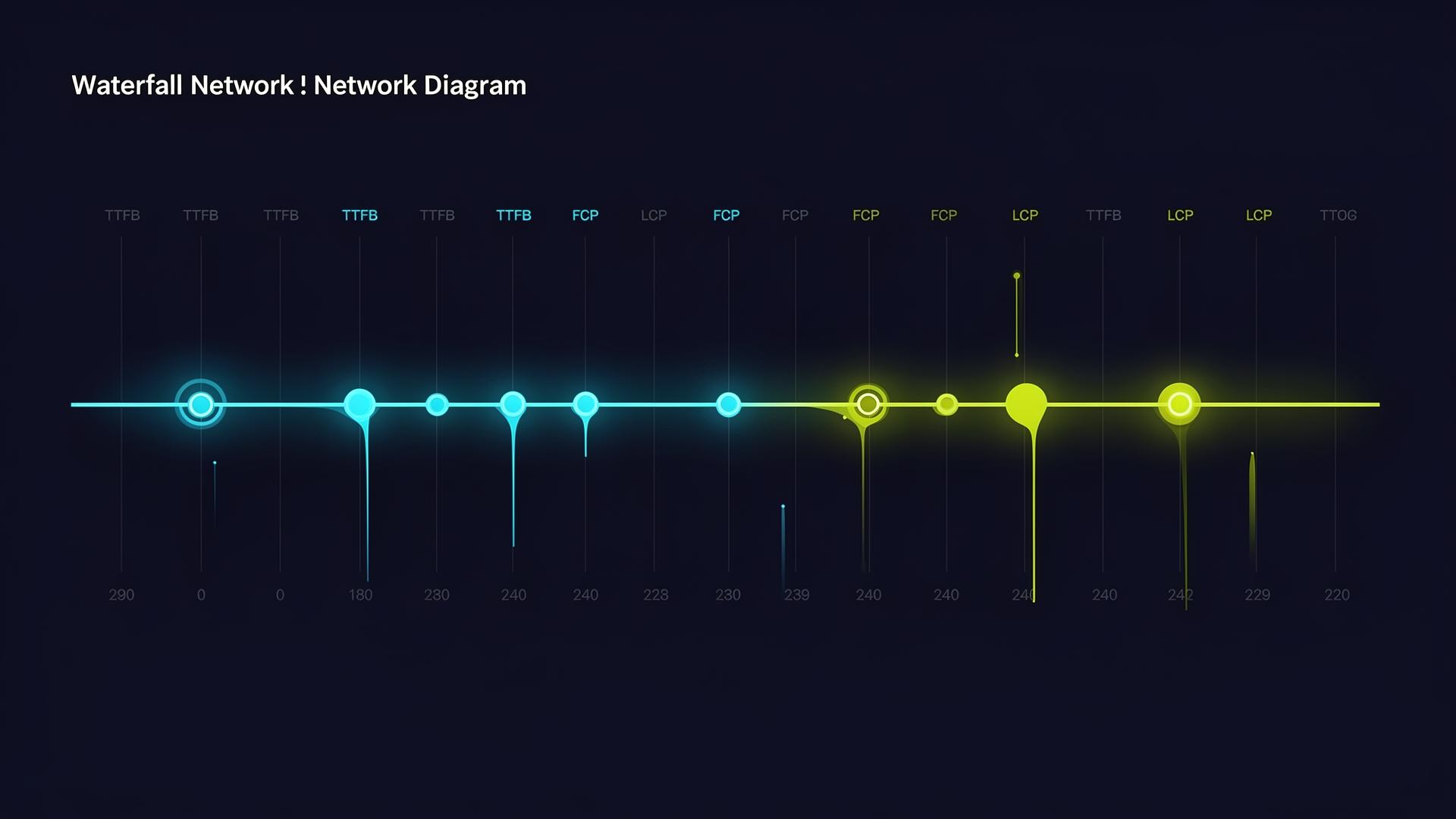
While Largest Contentful Paint (LCP), Interaction to Next Paint (INP), and Cumulative Layout Shift (CLS) are the official Core Web Vitals, there are several other important performance metrics that provide valuable context and help diagnose the root causes of poor CWV scores. These supporting metrics are often measured by tools like Lighthouse and can guide optimization efforts.
Time To First Byte (TTFB)
- Definition: TTFB measures the time it takes for a browser to receive the first byte of the response from a web server. It's the duration between the user initiating a request (e.g., clicking a link or typing a URL) and the first bit of content reaching their browser.
- Significance: A high TTFB indicates latency in server processing, network routing, or DNS lookups. While not a Core Web Vital itself, it is a foundational metric that heavily influences LCP and FCP. If TTFB is slow, all subsequent loading stages are delayed.
- Thresholds: A good TTFB is generally considered to be below 800 milliseconds (ms). Anything above that suggests potential server or network bottlenecks.
- Optimization Focus: Server-side performance (database queries, application logic), caching (server-side, CDN), DNS resolution speed, and web server capacity.
First Contentful Paint (FCP)
- Definition: FCP measures the time from when the page starts loading to when any part of the page's content is rendered on the screen. This could be anything from a piece of text to an image or a background color.
- Significance: FCP gives the first indication to the user that the page is actually loading and not entirely blank. It's a key milestone in the perceived loading experience. It correlates with LCP but can be significantly faster if the LCP element is further down the page or takes longer to render.
- Thresholds: A good FCP is typically less than or equal to 1.8 seconds.
- Optimization Focus: Similar to LCP, but often more about getting any content on screen. It's heavily impacted by render-blocking resources (CSS, JS) and server response time.
Total Blocking Time (TBT)
- Definition: TBT measures the total amount of time that a page is blocked from responding to user input during its loading phase. It is the sum of all "long tasks" (tasks on the main thread longer than 50 ms) that occur between FCP and Time To Interactive (TTI). For each long task, the "blocking time" is the portion of its duration *above* 50 ms.
- Significance: TBT is a crucial lab metric that correlates strongly with INP. While INP measures real-world interaction latency, TBT helps diagnose why a page might be unresponsive during its initial load. High TBT nearly always indicates significant main thread JavaScript work that will negatively impact INP.
- Thresholds: A good TBT is typically less than or equal to 200 ms. Note that TBT is a lab-only metric and is not directly collected in CrUX.
- Optimization Focus: Reducing JavaScript execution time, breaking up long tasks, minimizing third-party script impact, and utilizing web workers. It's a direct diagnostic for INP issues.
Speed Index
- Definition: Speed Index measures how quickly page content is visually displayed during page load. It's a composite metric that calculates the average time at which visible parts of the page are displayed. A lower score is better.
- Significance: Speed Index provides a holistic view of the visual loading progress. It's less about a single point in time (like FCP or LCP) and more about the smoothness of the visual progression. It's a good metric to track to ensure your page "feels" fast visually.
- Thresholds: A good Speed Index is typically less than or equal to 3.4 seconds. Like TBT, it is a lab-only metric.
- Optimization Focus: General page load optimizations, especially those impacting FCP and LCP, and ensuring images and other visual content appear progressively rather than all at once at the end of the load.
Time To Interactive (TTI) (Deprecated in Lighthouse 10)
- Definition: TTI measures the time it takes for a page to become fully interactive. A page is considered fully interactive when:
- Its FCP has fired.
- Its main thread is quiet enough to handle user input (i.e., long tasks are infrequent for at least 5 seconds).
- It registers handlers for most visible UI elements.
- Significance: TTI was important for understanding when a user could reliably interact with a page without encountering delays. It highlighted situations where content appeared quickly (good FCP/LCP) but the page was still janky due to background JavaScript execution.
- Status: As of Lighthouse 10, TTI has been deprecated in favor of INP and TBT, which provide a more direct and accurate measure of interactivity and responsiveness. While no longer a primary auditing metric, the concepts it represented (main thread quietness, readiness for input) are still highly relevant for INP optimization.
- Optimization Focus: Similar to TBT and INP, reducing main thread work and ensuring interactive components are ready promptly.
By understanding these supporting metrics, developers can gain a more nuanced insight into their page's performance profile and effectively pinpoint the underlying issues affecting their Core Web Vitals scores.
Essential Tools for Core Web Vitals Analysis
Optimizing for Core Web Vitals requires a suite of tools that provide both real-world (field) data and simulated (lab) data. Leveraging these tools effectively is crucial for identifying performance bottlenecks, testing improvements, and continuous monitoring.
Chrome DevTools
- Type: Lab Data, Local Environment Debugging
- Usage: Built directly into the Chrome browser (F12 or right-click > Inspect). DevTools offers a wealth of features for local debugging and performance analysis.
- Performance Panel: Provides a detailed flame chart of main thread activity, network requests, layout shifts (rendering), and painting events. This is invaluable for identifying long tasks contributing to INP, understanding render-blocking resources, and seeing individual layout shifts.
- Lighthouse Panel: Runs a Lighthouse audit directly on your local page (see Lighthouse below).
- Elements Panel: Inspect DOM elements, including their rendered size and style, which is useful for checking aspect ratios for CLS.
- Network Panel: Analyze resource loading waterfalls, content sizes, and request priorities. Helps diagnose LCP issues by showing when critical resources are fetched.
- CrUX Overlay (under Rendering options): Enables an overlay that visualizes layout shift regions as they happen, invaluable for debugging CLS visually.
- Emulation: Simulate different device types (mobile, tablet) and network conditions (throttling) to test performance under various scenarios.
- Benefit: Ideal for in-depth debugging, understanding the execution flow, and testing changes rapidly in a local development environment.
Google Lighthouse
- Type: Lab Data
- Usage: An open-source, automated tool for improving the quality of web pages. It can be run in Chrome DevTools, from the PageSpeed Insights tool, as a Chrome extension, or programmatically via Node.js CLI or a Lighthouse CI.
- Runs a comprehensive set of audits for performance, accessibility, SEO, best practices, and Progressive Web Apps (PWAs).
- Provides scores and detailed recommendations, categorizing issues by impact.
- Measures metrics like FCP, LCP, Speed Index, TBT, and CLS within a controlled, throttled environment. (Note: It generates a *calculated* TBT score, which is a proxy for interactivity, but cannot measure INP directly as it doesn't simulate real user interactions).
- Benefit: Provides a standardized, repeatable performance audit. Essential for setting performance budgets, catching regressions in CI/CD, and getting actionable advice.
PageSpeed Insights (PSI)
- Type: Field Data (CrUX) + Lab Data (Lighthouse)
- Usage: A web-based tool provided by Google (https://pagespeed.web.dev/). Enter a URL, and it generates a report.
- Shows aggregated Core Web Vitals assessment based on real-world Chrome User Experience Report (CrUX) data for both mobile and desktop. This is the data Google uses for ranking.
- Also runs a Lighthouse audit on the same URL and provides lab data, offering specific diagnostics and suggestions.
- Highlights opportunities for improvement and provides detailed diagnostic information based on the Lighthouse audit.
- Benefit: The go-to tool for seeing your page's "official" Core Web Vitals status as Google perceives it, alongside actionable advice to improve it. Indispensable for understanding if your site passes the CWV assessment.
Google Search Console
- Type: Field Data (CrUX)
- Usage: Google's primary interface for site owners to monitor their site's performance in search results.
- The "Core Web Vitals" report (https://search.google.com/search-console/core-web-vitals) categorizes pages on your site as "Good," "Needs Improvement," or "Poor" for Core Web Vitals across mobile and desktop.
- It groups similar pages by URL pattern, allowing you to identify entire templates or sections of your site that have CWV issues.
- Provides historical data over the last 90 days, showing trends.
- Benefit: High-level overview of an entire site's Core Web Vitals performance based on real-user data. Crucial for understanding the impact of changes over time and identifying problematic page types at scale.
Chrome UX Report (CrUX) BigQuery Dashboard
- Type: Field Data (Raw CrUX Data)
- Usage: CrUX provides raw, anonymized user experience data through a public dataset on Google BigQuery.
- Requires knowledge of SQL to query the dataset.
- Allows for highly granular analysis of CWV performance across countries, connection types, devices, and over time.
- Can be used to benchmark against competitors or analyze trends more deeply than Search Console provides.
- Benefit: For advanced users and large organizations, offers the deepest insight into real-world performance, allowing for custom reporting and competitive analysis.
Web Vitals Chrome Extension
- Type: Field Data (Local RUM) / Lab Data (for current page load)
- Usage: A browser extension that provides a real-time, heads-up display of Core Web Vitals for the current page you're browsing.
- Shows LCP, INP, and CLS scores for the current page, updating as you interact.
- Indicates whether the page is passing the CWV thresholds.
- Offers the option to see the current Largest Contentful Paint element and cumulative layout shifts.
- Benefit: Quick, visual feedback during development and testing on actual devices. Useful for observing the impact of interactions on INP and seeing layout shifts in real-time.
web-vitals npm Library
- Type: Field Data (RUM Integration)
- Usage: A small JavaScript library (https://github.com/GoogleChrome/web-vitals) that allows you to collect Core Web Vitals metrics on your live website for real users.
- Provides functions to get LCP, INP, CLS, FCP, TTFB, and FID (legacy) values.
- These values can then be sent to your analytics provider (Google Analytics, custom endpoint) for aggregation and analysis.
- Crucial for gaining true RUM data beyond what CrUX provides (e.g., for pages without sufficient CrUX data, or to collect deeper user segment insights).
- Benefit: Powers custom Real User Monitoring (RUM) for Core Web Vitals, enabling granular tracking and analysis of performance across your actual user base.
Example using web-vitals library:
To integrate web-vitals into your project:
- Install the package:
npm install web-vitalsor
yarn add web-vitals - Add to your JavaScript:
You typically want to include this script to run as early as possible in your page lifecycle.
// In your main application JavaScript file (e.g., app.js or index.js)
import { onLCP, onINP, onCLS, onFCP, onTTFB } from 'web-vitals';

function sendToAnalytics(metric) {
  const body = JSON.stringify(metric);
  // Replace with your actual analytics endpoint
  const url = 'https://example.com/analytics';

  // Use sendBeacon for reliable analytics reporting, even when navigating away
  if (navigator.sendBeacon) {
    navigator.sendBeacon(url, body);
  } else {
    fetch(url, { body, method: 'POST', keepalive: true });
  }
}

// Reports the metric to your analytics service
onCLS(sendToAnalytics);
onLCP(sendToAnalytics);
onINP(sendToAnalytics);
// Also collect supporting metrics
onFCP(sendToAnalytics);
onTTFB(sendToAnalytics);

console.log('Web Vitals monitoring initialized.');
By effectively combining field and lab data tools, developers and SEOs can gain a comprehensive understanding of their site's Core Web Vitals performance and implement targeted, data-driven optimizations.
A Structured Core Web Vitals Optimization Workflow
Optimizing Core Web Vitals is not a one-time task but an ongoing process that requires a structured approach. A robust workflow ensures that improvements are sustained and new issues are addressed promptly.
Step 1: Audit and Baseline Measurement
The first step is always to understand your current performance. This involves gathering data from various sources to establish a baseline.
- Consult Google Search Console (GSC):
- Action: Check the "Core Web Vitals" report in GSC.
- Purpose: This provides an overview of your site's real-user performance (CrUX data) at scale, categorizing URLs as "Good," "Needs Improvement," or "Poor" for mobile and desktop. It helps identify which page types (e.g., product pages, blog posts, home page) are most affected.
- Outcome: Identification of critical page groups requiring attention.
- Use PageSpeed Insights (PSI):
- Action: Run specific, representative URLs (from GSC findings) through PSI.
- Purpose: PSI shows both field data (CrUX) for the specific URL (if sufficient data exists) and a Lighthouse audit (lab data). The Lighthouse audit provides detailed diagnostics and suggestions for improvement (e.g., "Reduce server response times," "Eliminate render-blocking resources").
- Outcome: Deep dive into specific page performance, root causes of poor scores, and actionable recommendations.
- Leverage Chrome DevTools:
- Action: Open DevTools (Performance tab) on problematic pages.
- Purpose: For granular debugging of specific interactions (INP), layout shifts (CLS Overlay), and resource loading (Network tab). Record a performance profile to visualize main thread blocking, long tasks, and rendering bottlenecks.
- Outcome: Identification of exact JavaScript functions, CSS rules, or network requests causing issues.
- Implement RUM (web-vitals.js):
- Action: Integrate the
web-vitalslibrary into your site's analytics. - Purpose: Collect your own real-user data for all pages, segments, and interactions, providing a more detailed picture than CrUX (which has data sparsity for low-traffic pages). This is especially critical for INP.
- Outcome: Continuous, granular real-user performance monitoring.
- Action: Integrate the
Step 2: Prioritize Quick Wins and High-Impact Fixes
Once you have a clear picture, prioritize changes that will yield the biggest impact with the least effort.
- Address Critical Issues First:
- Focus on pages flagged as "Poor" in GSC.
- Prioritize fixing issues that impact multiple Core Web Vitals or are very severe. E.g., fixing a slow TTFB will improve LCP, FCP, and indirectly INP.
- Target the LCP Element:
- Identify: Use PSI or DevTools to find the LCP element.
- Optimize: Ensure it's not lazy-loaded, preloaded (
<link rel="preload">), usesfetchpriority="high", and is properly sized/compressed.
- Resolve Clear CLS Issues:
- Identify: Look for images/iframes without dimensions, dynamically injected content, or problematic font loads.
- Optimize: Add
width/heightattributes or CSSaspect-ratio. Reserve space for ads/embeds. Usefont-display: optional.
- Mitigate Major INP Blockers:
- Identify: Use DevTools (Performance tab) to find long tasks (JavaScript execution > 50ms).
- Optimize: Look for obvious candidates for debouncing/throttling, breaking up tasks with
setTimeout, or moving work to web workers.
- Reduce Render-Blocking Resources:
- Identify: PSI will flag these.
- Optimize: Inline critical CSS, defer non-critical CSS, and asynchronously load JavaScript.
Step 3: Develop a Comprehensive Optimization Roadmap
Beyond quick wins, build a strategy for sustained improvement, focusing on architectural and systemic changes.
- Server-Side Optimization:
- Actions: Upgrade hosting, optimize database, implement strong server-side caching, ensure efficient backend code.
- Impact: Reduces TTFB, positively affecting LCP and FCP.
- Asset Delivery Optimization:
- Actions: Implement a CDN, lazy-load non-critical images/iframes (correctly), serve modern image formats (WebP/AVIF), aggressively compress all assets.
- Impact: Improves LCP (fast resource loading), reduces bandwidth, speeds up overall page load.
- JavaScript Performance Refinement:
- Actions: Code splitting, tree shaking, aggressive minification, progressive hydration for SPAs, using idle callbacks or web workers for non-critical tasks.
- Impact: Crucial for INP, reduces TBT, improves overall responsiveness.
- CSS Delivery and Rendering:
- Actions: Purge unused CSS, optimize selectors, avoid complex layout properties triggering reflows, use
content-visibilitywhere appropriate. - Impact: Improves FCP/LCP (faster rendering), reduces CLS (fewer reflows).
- Actions: Purge unused CSS, optimize selectors, avoid complex layout properties triggering reflows, use
- Third-Party Script Management:
- Actions: Audit all third-party scripts. Load them asynchronously or with
defer. Consider self-hosting or lazy-loading widgets where possible. Prioritize impact vs. necessity. - Impact: Reduces main thread blocking, improves INP and LCP.
- Actions: Audit all third-party scripts. Load them asynchronously or with
Step 4: Implement, Test, and Monitor Continuously
Optimization is an iterative process. Changes need to be deployed carefully and their impact monitored.
- Implement Changes:
- Apply optimizations following your priority list and roadmap.
- Test in Lab Environment:
- Action: Before deployment, test changes using Lighthouse (locally or in CI/CD) and Chrome DevTools.
- Purpose: Catch regressions or confirm improvements in a controlled environment.
- Deploy Gradually (if possible):
- For major changes, consider A/B testing or staged rollouts to a subset of users.
- Monitor Field Data Post-Deployment:
- Action: Keep a close eye on GSC Core Web Vitals reports and your custom RUM data.
- Purpose: Confirm that lab improvements translate to real-world user benefits (CrUX data takes about 28 days to reflect changes). Look for trends and validate your assumptions.
- Iterate:
- Performance is not static. New content, features, third-party scripts, or evolving user patterns can introduce new bottlenecks.
- Regularly review metrics, re-audit, and refine your optimizations.
By following this structured workflow, organizations can systematically improve their Core Web Vitals, leading to better user experiences, improved SEO, and ultimately, enhanced business outcomes.
Common Core Web Vitals Mistakes and Myths
Navigating the landscape of Core Web Vitals optimization can be complex, leading to common misconceptions and errors. Understanding these can help avoid misdirected efforts and ensure effective strategies.
Mistakes
- Only Optimizing for Lab Data:
- Mistake: Focusing solely on Lighthouse scores (lab data) and neglecting real-user data (CrUX/RUM).
- Why it's a mistake: Lab data provides a controlled, repeatable environment for debugging, but it doesn't account for the vast array of real-world variables: actual network conditions, diverse device types, varying browser extensions, and unique user interactions. Your Lighthouse score might be 100, but your CrUX report could still show "Needs Improvement" or "Poor" because 75% of your real users are having a bad experience on slower connections or older devices.
- Solution: Always cross-reference lab data with field data (PageSpeed Insights, Search Console, or custom RUM). Prioritize fixing issues identified by real users.
- Lazy-Loading the LCP Element:
- Mistake: Applying
loading="lazy"to the hero image or the primary content block that is likely to be the LCP element. - Why it's a mistake: Lazy loading explicitly tells the browser to defer loading until the element is within a certain distance from the viewport. While great for off-screen images, applying it to above-the-fold, critical content directly undermines LCP, as the browser will intentionally delay its loading, making the user wait longer for the main content to appear.
- Solution: Ensure the LCP candidate element is loaded with
loading="eager"(default) and ideally preloaded with<link rel="preload" as="image">and givenfetchpriority="high".
- Mistake: Applying
- Not Reserving Space for Dynamically Injected Content:
- Mistake: Allowing ads, cookie banners, embeds, or other dynamic content to load without reserving adequate space in the layout.
- Why it's a mistake: This is a primary cause of high CLS. When an element loads and pushes down existing content, it irritates users and leads to a "Poor" CLS score.
- Solution: Always provide explicit dimensions (
width/height) for images/videos or use CSSaspect-ratio. For dynamic content, pre-allocate space usingmin-heightor by rendering a placeholder that matches the expected dimensions. Display non-critical dynamic content in fixed positions (e.g., sticky footer) that don't affect layout flow.
- Ignoring Third-Party Script Impact:
- Mistake: Overlooking or underestimating the performance impact of third-party scripts (analytics, ads, chat widgets, social embeds).
- Why it's a mistake: Third-party scripts are often a major source of main thread blocking, network requests, and layout shifts that negatively affect LCP, INP, and CLS. They can be particularly problematic because you have less direct control over their code.
- Solution: Audit all third-party scripts. Load them asynchronously or with
defer. Prioritize essential scripts. Consider lazy-loading non-critical widgets. Implement resource hints like<link rel="preconnect">for their origins.
- Over-optimizing for one metric at the expense of another:
- Mistake: Aggressively optimizing for LCP (e.g., inlining *all* CSS) without considering the impact on TBT/INP, or using
font-display: swapwithout accounting for potential CLS. - Why it's a mistake: Some optimizations can have side effects. Inlining too much CSS can increase initial HTML size, delaying FCP for a different reason, or increasing server TTFB. A font swap will reduce FOIT but may cause a CLS if the fallback and web fonts are very different.
- Solution: Strive for balance. Understand the interdependencies between metrics. Test changes holistically.
- Mistake: Aggressively optimizing for LCP (e.g., inlining *all* CSS) without considering the impact on TBT/INP, or using
Myths
- "Core Web Vitals are THE ranking factor":
- Myth: That CWVs are the only or most important factor for SEO.
- Reality: Content relevance and quality remain paramount. CWVs are part of the broader "page experience" signal, which Google refers to as a tie-breaker. A page with excellent content but slightly suboptimal CWVs can still outrank a page with perfect CWVs but inferior content. However, they are increasingly important for competitive niches and overall user satisfaction.
- "A perfect 100 Lighthouse score guarantees good Core Web Vitals":
- Myth: Achieving 100 on Lighthouse means your site's CWVs are guaranteed to be "Good."
- Reality: Lighthouse is lab data. While a great Lighthouse score is a strong indicator, it does not directly reflect real-user experience (CrUX). Factors like server conditions, user device processing power, and network latency can vary widely in the real world. A perfect lab score doesn't guarantee a perfect field score.
- "Mobile-First Indexing means only mobile CWV matter":
- Myth: Since Google uses mobile-first indexing, only your mobile Core Web Vitals score is relevant for ranking.
- Reality: While mobile performance is crucial due to mobile-first indexing, Google explicitly states that Core Web Vitals apply to *both* mobile and desktop search results. You need to ensure a good experience across all device types your users employ.
- "Optimizing for FID is still relevant":
- Myth: First Input Delay (FID) is still a critical metric to optimize.
- Reality: FID was officially replaced by Interaction to Next Paint (INP) as a Core Web Vital in March 2024. While the underlying causes of poor FID (main thread blocking generally) are still relevant for INP, direct optimization for FID as a CWV is no longer needed. Focus should be entirely on INP.
- "CWV are just for SEO, not real users":
- Myth: Core Web Vitals are an arbitrary set of metrics Google invented solely for search ranking manipulation.
- Reality: CWVs are explicitly user-centric metrics designed to surface real-world user frustrations (slow loading, janky interactions, unexpected shifts). Optimizing them directly leads to a better user experience, which in turn benefits business metrics like conversion rates, bounce rates, and user retention, quite apart from any search engine benefit.
By dispelling these myths and avoiding common pitfalls, developers and site owners can approach Core Web Vitals optimization with a clear, effective, and user-focused strategy.
1604lab Case Study: Hyvä Magento 2 Performance
At 1604lab, we have specialized in delivering high-performance e-commerce solutions, particularly within the Magento ecosystem. A significant part of our success comes from leveraging modern and performance-focused frontend frameworks, with Hyvä Themes for Magento 2 being a prime example. This case study highlights our approach and the measurable results we achieved for three distinct Hyvä Magento 2 stores, all successfully put into the "good" zone for Google Core Web Vitals.
The Challenge with Traditional Magento 2 Frontends
Magento 2, while powerful, has historically struggled with frontend performance, particularly concerning Core Web Vitals. The default Luma theme often leads to bloated JavaScript, extensive CSS, slow rendering, and significant main thread blocking, making it challenging to achieve "Good" scores for LCP, INP, and CLS out-of-the-box. This impacts both user experience and search engine visibility.
The Hyvä Themes Solution
Hyvä Themes, a revolutionary frontend for Magento 2, takes a different approach. Instead of building on Magento's complex RequireJS and Less ecosystem, Hyvä utilizes Tailwind CSS and Alpine.js. This dramatically reduces the frontend footprint, leading to:
- Significantly less JavaScript: Alpine.js is tiny and used selectively for interactivity.
- Leaner CSS: Tailwind CSS, when purged, delivers only the styles actively used on a page.
- Faster rendering: Fewer resources mean quicker painting and reduced main thread work.
Our Approach at 1604lab
For our clients migrating to or building new Magento 2 stores with Hyvä, our process involved a focused Core Web Vitals strategy:
- Initial Audit & Baseline: Before any development, we perform a thorough audit of the existing store (if migrating) or similar site to establish a performance baseline, focusing on PageSpeed Insights and Chrome DevTools analysis.
- Strategic Hyvä Implementation: We don't just "install" Hyvä. Our implementation prioritizes CWV from the ground up:
- Optimized Image Delivery: Ensuring all product images and banners leverage modern formats (WebP/AVIF), responsive sizing, lazy-loading for off-screen content, and proper
width/heightattributes. LCP elements are identified and preloaded withfetchpriority="high". - Minimal Custom JavaScript: Any custom interactivity is built lean with Alpine.js or vanilla JS, avoiding heavy libraries that cause long tasks. We actively monitor INP during development.
- Efficient CSS: Utilizing Tailwind CSS's JIT mode and purging unused styles ensures minimal CSS payload. Critical CSS is often handled efficiently by the Hyvä build process.
- Third-Party Script Management: Each third-party integration (e.g., analytics, payment gateways, marketing tools) is evaluated for its performance impact. Scripts are loaded asynchronously or deferred, and resource hints (
preconnect,dns-prefetch) are applied. - Server-Side Optimizations: Working with server infrastructure teams to ensure fast TTFB, robust caching at various layers (Varnish, Redis, FPC), and optimized database performance.
- Layout Stability (CLS): Rigorous attention to avoiding layout shifts, especially for dynamic elements like cookie banners, promotions, or user-generated content sections.
- Optimized Image Delivery: Ensuring all product images and banners leverage modern formats (WebP/AVIF), responsive sizing, lazy-loading for off-screen content, and proper
- Continuous Monitoring & Refinement: Post-launch, we integrate
web-vitals.jsand continuously monitor performance against CrUX data in Google Search Console and through custom Real User Monitoring dashboards. This allows us to catch any regressions and fine-tune for sustained "Good" CWV scores.
Achieved Results: 3 Hyvä Magento 2 Stores in the Good Zone
Through this meticulous process, 1604lab has successfully brought three distinct Hyvä Magento 2 e-commerce stores into the "Good" zone across all Core Web Vitals (LCP ≤ 2.5s, INP ≤ 200ms, CLS ≤ 0.1) for at least 75% of users in their CrUX reports. This achievement is a testament to the power of the Hyvä framework combined with a dedicated performance optimization strategy.
The benefits observed for these clients include:
- Improved Search Engine Visibility: Enhanced page experience signals contributed to better organic search rankings.
- Higher Conversion Rates: A faster, more responsive, and stable user experience led to increased user engagement and completed transactions.
- Reduced Bounce Rates: Users were more likely to stay on the site and explore.
- Better User Satisfaction: A smoother experience translates directly to happier customers.
This case study illustrates that achieving excellent Core Web Vitals, even for complex platforms like Magento 2, is entirely feasible with the right tools and expertise. It reinforces our commitment to performance as a core pillar of a successful online presence.
For a deeper dive into our specific strategies and more detailed case studies on Hyvä Magento 2 performance, we invite you to read our detailed blog posts: Hyvä Magento 2 Frontend Performance Case Studies by 1604lab.
Frequently Asked Questions About Core Web Vitals
How do Core Web Vitals impact SEO?
Core Web Vitals directly impact SEO as they are a component of Google's Page Experience ranking signal. While content relevance remains paramount, pages with "Good" Core Web Vitals scores are favored in search results, especially when competing pages have similar content quality. They contribute to a better user experience, which Google values highly, potentially leading to improved organic rankings, enhanced visibility in top stories carousels (formerly), and better overall user engagement metrics (lower bounce rate, higher time on site) that can indirectly influence SEO.
Can a poor Core Web Vitals score really hurt my rankings?
Yes, a consistently "Poor" Core Web Vitals score can indeed hurt your rankings. While Google emphasizes that great content can still rank well, poor page experience can prevent even high-quality content from achieving its full ranking potential. In a competitive search landscape, if your competitors offer similar content but a significantly better page experience (as measured by CWV), Google is likely to prioritize their pages. This is particularly true for mobile searches. Furthermore, a poor user experience will likely lead to higher bounce rates and fewer conversions, which implicitly negatively impacts your site's perceived value.
What is the difference between field and lab data?
Field data (or Real User Monitoring - RUM) is collected from actual users visiting your website. It reflects real-world conditions (diverse devices, networks, locations, interactions) and is what Google uses for ranking (via the Chrome User Experience Report - CrUX). Lab data (or synthetic monitoring) is collected in a controlled environment with predefined settings (e.g., simulated mobile device and throttled network). Tools like Lighthouse provide lab data. Lab data is excellent for debugging, testing changes, and establishing performance budgets because it's reproducible. Both are crucial: field data tells you what users actually experience, and lab data helps you diagnose why.
How often do Core Web Vitals thresholds change?
While the underlying metrics (LCP, INP, CLS) are stable, their thresholds are occasionally adjusted, or one metric might be replaced by a more accurate one (as with FID being replaced by INP in March 2024). Google communicates these changes well in advance through their web.dev blog and Search Central channels, providing ample time for developers to adapt. It is not common for thresholds to change frequently; major shifts are usually once every few years as the web evolves.
Is it possible to achieve good scores for all Core Web Vitals?
Yes, it is definitely possible and achievable for most websites to be in the "Good" zone for all Core Web Vitals. It requires a dedicated and continuous effort to optimize various aspects of your website's performance, from server response times to client-side rendering and asset delivery. Many modern frameworks and development practices are built with performance in mind, making it more feasible. Our own case study with Hyvä Magento 2 stores demonstrates that even complex e-commerce platforms can reach the "Good" threshold with the right approach.
What should I prioritize when optimizing?
Start by identifying your most problematic pages or templates using Google Search Console's Core Web Vitals report. Then, for those pages, prioritize fixes for the metric that is currently "Poor" or "Needs Improvement" for the largest percentage of users. Generally:
- Improving LCP: Focus on server response time (TTFB), critical resource loading (LCP image, main CSS/JS), and preloading.
- Improving INP: Focus on reducing main thread blocking due to excessive JavaScript, optimizing event handlers, and breaking up long tasks.
- Improving CLS: Focus on explicit image/video dimensions, reserving space for dynamic content (ads, embeds), and optimizing web font loading.
Often, improving one metric (e.g., TTFB) will positively impact others (LCP, FCP), so look for those high-leverage optimizations first.
Official Core Web Vitals Sources
- web.dev/vitals - The main landing page for Core Web Vitals, providing an overview and links to detailed guides.
- web.dev/lcp - Comprehensive guide on Largest Contentful Paint.
- web.dev/inp - In-depth explanation of Interaction to Next Paint.
- web.dev/cls - Detailed documentation for Cumulative Layout Shift.
- web.dev/ttfb - Guide on Time to First Byte.
- web.dev/fcp - Information about First Contentful Paint.
- developers.google.com/search/docs/appearance/core-web-vitals - Google Search Central's perspective on Core Web Vitals for SEO.
- developer.chrome.com/docs/crux - Explains the Chrome User Experience Report (CrUX) and its data.
- github.com/GoogleChrome/web-vitals - The official GitHub repository for the
web-vitalsJavaScript library.
Ready to Transform Your Website Performance?
Understanding and optimizing for Core Web Vitals can be a complex and time-consuming endeavor, especially for large-scale or e-commerce platforms like Magento 2. At 1604lab, we possess the deep technical expertise and proven methodologies required to diagnose, optimize, and continuously monitor your website's performance, ensuring it meets Google's standards and, more importantly, delights your users.
Whether you're struggling with poor scores, embarking on a platform migration, or simply aiming to outpace your competition, our team is equipped to deliver tangible results. We specialize in turning performance bottlenecks into competitive advantages, enhancing your search visibility, and boosting your conversion rates.
Don't let suboptimal Core Web Vitals performance hold back your online success. Partner with experts who intimately understand the nuances of web performance and its impact on your business.
Contact us today to discuss your Core Web Vitals challenges
Explore our specialized services for Magento 2 performance, including our expertise with Hyvä Themes: Discover our Hyvä Magento 2 Services